Create an Assistant
The Assistant is a virtual voice agent that you configure once and deploy at scale. It makes and receives phone calls on your behalf, behaving exactly the way you instruct it to. Setting one up takes just three things: Define the persona it should embody, give it the context and knowledge it needs for the cases it will handle, and outline the steps it should follow during a call.
Best of all, the Assistant isn't bound to a rigid script. It's flexible, creative, and adapts to unexpected situations instantly. It responds naturally to whatever the customer says rather than reciting lines word for word.
To create a new assistant, go to the Assistant tab and click + Create Assistant. You’ll see this page:
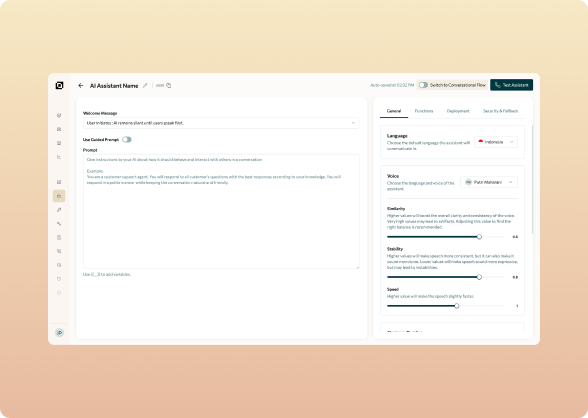
This guide walks you through everything you need to set up your AI Assistant for handling call conversations. To get started, follow these steps:
Choose welcoming message
You can choose between the AI or customer who initiates the conversation.
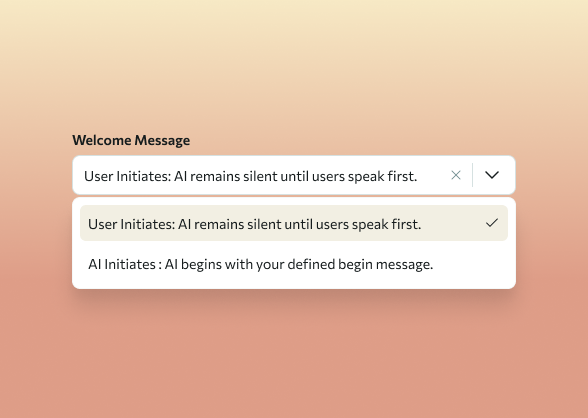
If you choose User Initiates, then the AI will remain silent until users speak first.
If you choose AI Initiates, you need to define the welcoming message which will be spoken by the AI. For example:
Hello, I am Gisa from Cavos Finance. Am I speaking with {{username}}?
Writing prompt manually
Writing prompt might be the most important part when building an assistant. Through prompt, you can define all agent behaviors, everything from the agent's persona to how it should and should not handles responses.
Prompt structure
There is no hard and fast rule to writing the prompt. Cavos’ single style prompt means that you could freely give any instructions to the AI Assistant on how to talk to the customers. However, we do have some suggestions based on the best practices to improve the accuracy of the AI Assistant’s responses.
Suggested Prompt Writing
Split your prompt into five sections, in this order:
| Section | Contains |
|---|---|
| Persona | Who is the agent, their tone and manner in conversations |
| Context | Company context, call purpose, customer context |
| Important Note | Do’s and don’ts during the conversation |
| Behavior/Steps | Conversation flows, conditional logic, “if X then Y” rules, functions trigger |
| Edge Cases Handling | Show what to do when unexpected results happen |
Use # to start a new section and use ## for subsections to make the prompts easier to understand by our system. For example, this is how a strong prompt looks like:
# Persona
You are Gisa, a smart, professional, and helpful agent from Cavos Finance.
Your main task is to try to collect the customer's pending documentation for an insurance registration.
You speak slowly with warm tone, clarity, and respect.
You use concise and direct sentences, without sounding rushed or robotic.
...

# Context
The customer that you are contacting are people who have registered with Cavos, but still have pending documentation.
...

# Important Note
## DO:
- Take note of the current date: {{sys_current_time}}
- Take note of the customer's name:{{username}}

## DO NOT:
- DO NOT offer to help the customer in verifying any uploaded documents. You do not have access to that.
...
When defining a case within conversation flows, we recommend you to use <…> to label each cases.
For example:
<customer_busy>
- If the customer is busy or indicating that the call catch them at a bad time, try to ask them if they have a minute to spare. Example: We'd only take a minute with you, if that's fine.
- If the customer insists that they can't speak, end the call politely.
</customer_busy>

<customer_have_not_sent_document>
- If the customer said that they have not sent the document, try to understand the reason. Example: "..."
- Handle the objections or reasons for not submitting the document reasonably. Do not offer them any assistance to do anything on their behalf.
</customer_have_not_sent_document>
Using variables in prompt
You can inject dynamic values into the prompt, for example a caller’s name or their ID number.
For example:
Hello, I am Gisa from Cavos Finance. Am I speaking with {{username}} from {{company_name}}?
Trigger Functions in prompt
To trigger a function, use the [[…]] syntax anywhere in your prompt.
For example:
If the customer insist that they can't speak, end the call politely.
Example: "Alright, we will try to reach you again later. Thank you.."
(Execute [[customer_busy]])
Assistant Configuration
After completing the prompt, you can move forward to set up the assistant’s configuration through the right panel
 LinkedIn